iPhone Coding Snippet – In Application Emailing

  • Twitter
  • Facebook
  • Digg
  • Reddit
  • StumbleUpon
  • del.icio.us
  • Google Bookmarks
November 18th, 2009 Posted by: - posted under:Snippets

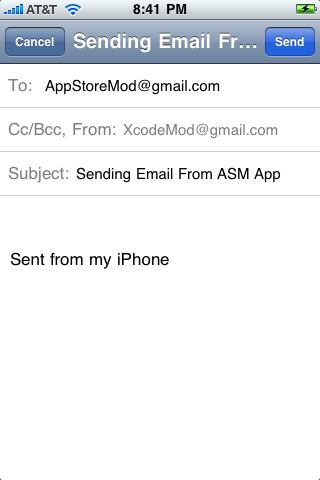
IMG_0001A lot of applications you see have an email button. When you click it then it will leave the application and take you to the Mail application. It can get really annoying leaving the application and then going back in after your done sending the email. This is just a great way to show off your app and make your app look more professional and make it easier on the user by filling in the To and Subject for them. They are also able to change the From to whatever email then want you to receive an email from just like you can do in the Mail app. So todays tutorial is gonna show you how to email within your application. We will be using the MessageUI framework and we will also include an attachment in the email. Theres a screenshot to the left of how it will look.

So lets get started…

1. Create A New View Based Application
You can name yours whatever you want, in the tutorial I will be referring it as the NameViewControllers.

2. Import The Frameworks

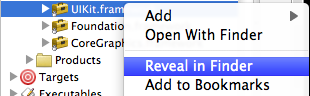
The first thing we need to do is import the framework. So go to your Frameworks folder in the Files In Pain section on the left. Open the folder and right click one of the frameworks and click “Reveal In Finder.” Heres a screenshot on what you should do.
Screen shot 2009-11-18 at 7.58.04 PM

Go ahead and look for the “MessageUI.framework” and highlight it then drag it into your frameworks folder. Make sure that when you click Add on the thing that makes sure you want to import it that “Copy items into destination group’s folder (if needed)” is not check. Thats a very important step or you will have big time problems and you do this with any frameworks you would ever use in the future.

3. Implementing The Code

Now that we have imported the framework lets get into some coding. So go ahead and jump in the NameViewController.H and make an IBAction for a button. Then copy that code and paste it in the NameViewController.M with curly brackets. Also make sure to add the button in Interface Builder and link it up with a Touch Up Inside method. You guys are at the point to knowing how to hook up actions and dragging stuff into Interface Builder. After that we want to on the top of the NameViewController.h import the framework. So on the top do #import “MessageUI/MessageUI.h” and the reason why we do this is because we must import out MessageUI framework to make calls to the associated header files. Now we need to also put in the delegate protocols for this framework. @interface NameViewController: UIViewController do this code <MFMailComposeViewControllerDelegate, UINavigationControllerDelegate>. Heres the code here for the NameViewController.H

#import <MessageUI/MessageUI.h>

@interface MailComposerViewController : UIViewController

<MFMailComposeViewControllerDelegate,UINavigationControllerDelegate>  {

}

-(IBAction)pushEmail;

@end


Now after your done with the .H jump into the .M viewcontroller. Now in your button action code do this:

-(IBAction)pushEmail {

MFMailComposeViewController *mail = [[MFMailComposeViewController alloc] init];

mail.mailComposeDelegate = self;

if ([MFMailComposeViewController canSendMail]) {

//Setting up the Subject, recipients, and message body.

[mail setToRecipients:[NSArray arrayWithObjects:@"email@email.com",nil]];

[mail setSubject:@"Subject of Email"];

[mail setMessageBody:@"Message of email" isHTML:NO];

//Present the mail view controller

[self presentModalViewController:mail animated:YES];

}

//release the mail

[mail release];

}

//This is one of the delegate methods that handles success or failure

//and dismisses the mail

- (void)mailComposeController:(MFMailComposeViewController*)controller didFinishWithResult:(MFMailComposeResult)result error:(NSError*)error

{

[self dismissModalViewControllerAnimated:YES];

if (result == MFMailComposeResultFailed) {

UIAlertView *alert = [[UIAlertView alloc] initWithTitle:@”Message Failed!” message:@”Your email has failed to send” delegate:self cancelButtonTitle:@”Dismiss” otherButtonTitles:nil];

[alert show];

[alert release];

}

}


What if we wanted to include an image attachment to the email? Well its quite simple. Just add this to the code right under the part where you set up the Recipient, Subject, and the Message.

UIImage *pic = [UIImage imageNamed:@"Funny.png"];

NSData *exportData = UIImageJPEGRepresentation(pic ,1.0);

[mail addAttachmentData:exportData mimeType:@"image/jpeg" fileName:@"Picture.jpeg"];

Now we are setting up the MailComposer in the first part of the code in the action. Then we call a didFinishWithResult method where we are setting up if the email fails or sends. Also it sets up a Cancel button for you so we have to call the dismiss method so that it works. In the attachment code just edit the imageNamed:@”" with your images name.That is basically it! The source code is below for the people that just doesn’t wanna copy and paste or type… I am just jking with you guys. Happy iCoding!

iPhone Tutorial – In Application Emailing

  • David

    Thanks, that was a great tutorial. It can be so simple to do things on the iPhone when you know the right frameworks and protocols.

    Talking of frameworks, if you ctrl click on the frameworks folder in xcode, then choose Add, Existing Frameworks… and then select MessageUI from the list, is that doing the same thing as your section 2?

  • AppStoreMod

    Yea you can do it that way too. There is different ways to doing it.

  • Julian

    This is one of the last hings Ineeded for my App, all the other tutorials in the internet didn’t really work!

    Great Job!

  • 1223

    Hmm, this doesnt seem to work for me, even the downloaded version…

  • Alex

    It wasn’t working for me either – there are a few problems with the code.

    1. In the attachment section, ‘pic’ is undeclared. I think it should be ‘picture’ but I still can’t get the attachment to work
    2. I don’t know what [mailComposer release] is supposed to refer to but it’s undeclared.
    3. The IB connection between the button and the method is not set up correctly. You need to make the connection to ‘pushMail’ instead of ‘sendEmail’ (which doesn’t exist)

    And yes – you need to run it on a real device since the simulator doesn’t have email functionality.

  • Ipodmail

    I am also having the same problems as Alex, could someone shine a light on this topic ?

  • dan

    [mailComposer release]; should be [mail release];

  • http://blog.underplot.com marin

    you always make things really easy :) thanks

    i wonder how much memory it takes this mail controller, should I worry what else there’s loaded, while this is modally presented?

  • AppStoreMod

    Try re-downloading it now. I fixed the errors. Also make sure you build the app on your iPhone/iPod Touch.

  • AppStoreMod

    I have fixed the errors in the post and source code. You can re-download it and try it now.

  • AppStoreMod

    I have fixed the errors in the post and source code. You can just try and re-download it and try it now.

  • nadam

    Hi!
    I was wondering how would you do that lets say I have two buttons one says DAD other says MUM any time i press MUM it will send an email with a pic of flowers,if press DAD it sends a pic with a pint of beer. Any ideas?

  • babydeveloper

    Hi!

    i was looking for something like that for my app , and i download the sourceCode (the new version) , i send an email but it doesn’t work :(
    what i am doing wrong , or is because of me ???

    thanks!

  • http://www.AppGraphix.com Corey

    Really appreciate you showing us the code for this! Makes it real clear for me!

  • http://www.softwaresliders.com Jeff T

    Any luck with the image attachment? I can’t get it to load, even after making the changes to the code for “pic” etc.

  • Momeks

    Plz include a sample code of your tutorial for solve any problems ..

  • parijat

    is there any way to trap the event on composer field like taping or double tapping

  • http://www.bracercom.com Bracer Jack

    Thanks for this tutorial AppStoreMod, you really have a neck for making things really easy and simple.
    I guess the right way to say it is you are straight to the point in your tutorial instead of trying to show off a little here and there.
    Perfection :)

    I am wondering what is the role of “UINavigationControllerDelegate” in this case, because when I remove that, it still works.

  • Momeks

    guys ! i am have some problem .. who can attach his sample code [emailing tutorial] ?

  • Momeks

    Ops i found my problem . it works fine now :)

  • http://www.brandflakeapps.com BrandflakeApps

    I keep on failing when i put in: !!!

    Help anyone???

  • http://www.brandflakeapps.com BrandflakeApps
  • http://www.brandflakeapps.com BrandflakeApps

    MFMailComposeViewControllerDelegate,UINavigationControllerDelegate

  • Chris

    I’m running into trouble – I have a similar solution where i have a modal view with a send email button that cretaes the modal email composer view. I guess it’s a problem to set this initial modal view as a delegate for the modal email composer too. When I send a dismissModalView to the mail controller in the callback method, is it possible that i send the dismiss to the initial modal view too? Debugger is not very helpful here, I get a msg: Program received signal: “EXC_BAD_ACCESS”.

  • Ken

    Great tut
    I am just wondering how to alter the image attach code so that in a scroll view app the user would have the option to e-mail that specific picture. Would I create *pic *pic1 etc and than how would I hook up the e-mail button in image view or is it better to create different buttons and views for each picture?

    Thanks,
    Ken

  • imtiyaz

    Thanks for your good work.

    Does anyone has idea how to develop email receiving application.

  • Mohammad Asif

    This is very helpful coding page. I would like to have the code for sending and cancelation of the email as well if u can provide it to me…

  • http://www.olasz-ales.com alessign

    gave an errors in my own app. What is the MFMailComposeViewControllerDelegate? Do I need to keep it like this or change it somehow? How should I understand it? TKS

  • http://www.olasz-ales.com alessign

    Sorry, my fault, beginners mistake. Didn’t import frameworks….uppps

  • sathya T

    I get the following link error:

    ld: warning: in /Users/sathya/Documents/Projects/iPhone/MyMail/MessageUI.framework/MessageUI, missing required architecture i386 in file
    Undefined symbols:
    “_OBJC_CLASS_$_MFMailComposeViewController”, referenced from:
    objc-class-ref-to-MFMailComposeViewController in MyMailViewController.o
    ld: symbol(s) not found
    collect2: ld returned 1 exit status

  • Sean Henderson

    I have entered the code in my own app and after clicking the button it crashes. Not sure were the problem is with my coding. Can someone help?

  • Gregory Ryslik

    I am a beginner in iphone development though I’ve had quite a bit of experience with c, c++, etc.

    I get everything to compile and editable, but when I click send I don’t actually receive an email. Is this not built in or am I missing something! Thanks for your help!

  • http://www.billpaynedesign.com bpd

    Awesome tutorial! Thanks for making it so clear. Is there any way to display the attached image in the body of the message?

  • moshe

    i use the MFMailComposeViewController Controller as following :

    MFMailComposeViewController *picker1 = [[MFMailComposeViewController alloc] init];
    picker1.mailComposeDelegate = self;
    [picker1 setSubject:@"I have a pencil for you"];
    UIImage *roboPic = [UIImage imageNamed:@"RobotWithPencil.jpg"];
    NSData *imageData = UIImageJPEGRepresentation(roboPic, 1);
    [picker addAttachmentData:imageData mimeType:@"image/jpg" fileName:@"RobotWithPencil.jpg"];
    NSString *emailBody = @”This is a cool image of a robot I found. Check it out!”;
    [picker1 setMessageBody:emailBody isHTML:YES];
    picker1.navigationBar.barStyle = UIBarStyleBlack;
    [self presentModalViewController:picker1 animated:YES];
    [picker1 release];

    when i press button “Cancel” i don’t see the panel with “Draft” ,”Save Draft” and “Cancel” buttons , the screen locked/frozen but panel with buttons mention above doesn’t appears/not shown .

    i will be glade to get any assistance.

    Thanks in advance
    Moshe

  • http://www.worldoftrade.com/ Rolex Parts

    Your post have good information photo are also inspire to me on this website…….
    thanks for sharing great information…

  • Thromordyn

    How would one go about saving a draft? It’s typically unnecessary for a lot of simple implementations (eg, bug reporting), but the option is there.

  • http://www.optimates.se tommy

    You need to include the UIMessage framework

  • Sam

    You mean the MessageUI.framework, but thanks, that fixed the problem for me.

  • Aryan

    Great tutorial, do you have a way to choose an attachment during mail creation, instead of hardcoding the same.

  • Nehal11

    Can i send email using simulator or i have to test it on device?

  • Raksmey Jonh

    After mail sent can i get email message?

  • gina

    is there a way to hide the recipient or use a pseudo name instead of using the actual email address?

  • blueZone

    how to include the image capture of scroll view

  • blueZone

    how to include the image capture of scroll view

blog comments powered by Disqus