iPhone Programming Tutorial – UITableView Hello World

  • Twitter
  • Facebook
  • Digg
  • Reddit
  • StumbleUpon
  • del.icio.us
  • Google Bookmarks
July 26th, 2008 Posted by: (ELC) - posted under:Tutorials

In this tutorial I will walk to you through creating a simple “Hello World” application using a UITableView for the iPhone.  There are many ways that a Hello World program could be made on the iPhone, I am going to show you the simplest.  This tutorial assumes you have a basic understanding of Objective-C.  Apple has provided a very simple and straight forward tutorial on Objective-C.  You can find it here.

You will learn how to:

This tutorial assumes that you have already installed the iPhone SDK.  If you are unsure how to do this, click and follow the steps.

Creating a New Navigation-Based Application

Open Up Xcode

You will be doing all of your development in Xcode. Then close the Welcome window (if it shows up)

Start a new iPhone OS Project
Click Xcode > New Project and a window should pop up like this:
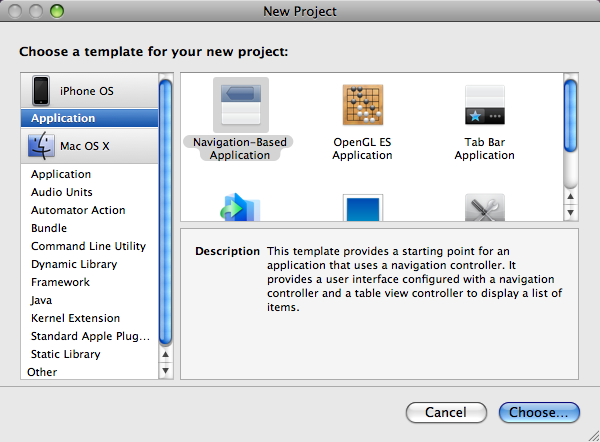
Make sure Application is selected under iPhone OS and then select Navigation-Based Application. Click Choose… It will ask you to name your project.  Type in “Hello World” and let’s get started.

Learn About the Default Files

What is all this stuff?
There are quite a few files that get added to your project.  At first glance, this looks kind of intimidating.  Don’t worry, we only need to edit one of them. Here is a quick explanation of the different files.
You don’t have to read this part but having this many files is what confused me the most when I started developing for the iPhone.

  1. CoreGraphics.framework, Foundation.framwork, UIKit.framework – You guessed it, this is a set of library functions provided by Apple that we use in our application. We use these as includes similar to any other language that includes library functions.
  2. HelloWorld.app – This is your app that gets installed on the iPhone.  We don’t really need to worry about this right now
  3. Hello_World_Prefix.pch – This is another include file that gets compiled separately from your other files so you don’t need to include it on each file. It contains some code to include the data inside the frameworks.
  4. Hello_WorldAppDelegate.h – This is a header file that contains all of our definitions for variables that we will be using.  It’s very similar to a header file in C or C++;
  5. Hello_WorldAppDelegate.m – All of the magic starts here.  Consider this file our starting point for execution.  The main.m file invokes this object.
  6. Info.plist – This contains various meta information about your program.  You won’t really need to edit this until you are ready to start testing on the iPhone
  7. main.m – Like most programming language, this file contains our main function.  This is where execution begins.  The main function basically instantiates our object and starts the program.  You shouldn’t need to edit this file.
  8. MainWindow.xib – This contains the visual information of our main window.  If you double click on it, it will open in a program called “Interface Builder”.  We will get to this a little later.  Just on thing to note is this file does not contain any code.
  9. RootViewController.h, RootViewController.m - These are files for a view controller that gets added to our main window.  Basically, Apple has already created a simple interface when you clicked on Navigation-Based Application. Since most navigation-based applications use a Table View, Apple has provided it for us to use.
  10. RootViewController.xib – This is a view that Apple has provided that emulates a table.  It has rows and columns.  We will be displaying our “Hello World” text inside one of these rows

Now, all of these files together create a basic program.  Go ahead and click on the Build and Go button at the top of Xcode. Make sure the drop-down on the top left says Simulator | Debug, this tells Xcode that we are testing on the iPhone simulator.
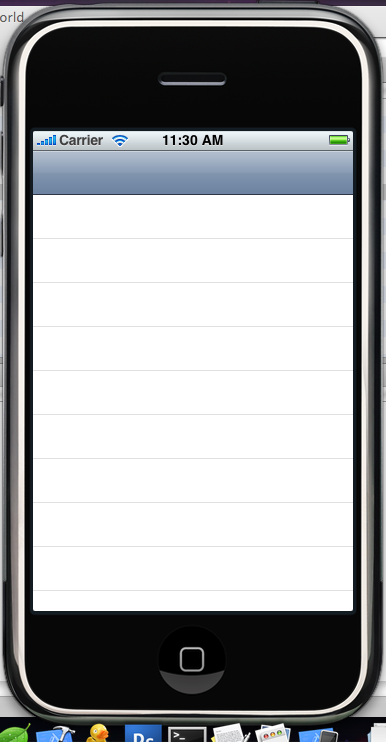
You will see the iPhone simulator start and your program will launch.  It’s not very interesting at the moment.  All it shows is the Table View that Apple has added for us.  So what we are going to do is add a row to this table view.

Update the UITableView Cells to Display “Hello World” Text

Let’s write some code
Start by opening RootViewController.m. This is the view controller that Apple added to our main view.  All of the functions you see already created in here are functions that have been overridden from the Table View super class.  Since we are editing a table, all of these functions will be related to editing a table.  So find the function called numberOfRowsInSection.
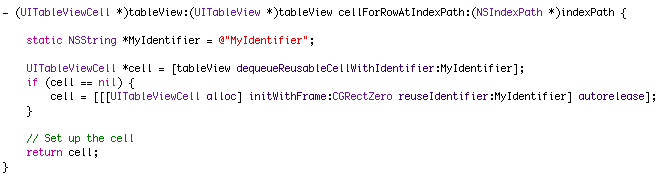
This function tells the application how many rows are in our table.  Currently, it returns 0. Let’s change that to return 1. This will tell the application that we want 1 row in our table.  Now go down to the function called cellForRowAtIndexPath. This function gets called once for every row.  This is where we define what content to display in a given row.  In this case we want the row to be a string that says “Hello World”.
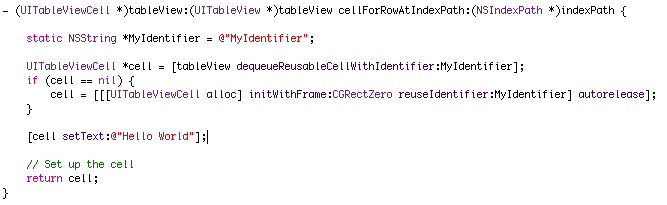
What this function is doing is creating a new cell object and returning it.  The code between the i(cell==null) block checks to see if we have created a cell before, if not build a new cell, otherwise use the one we created before.  This helps in performance so we don’t need to build new cells each time we visit this function.  So right before the // Set up the cell comment add the following code:
[cell setText:@"Hello World"];
We are basically calling the setText method of the cell object and pass in the string “Hello World”.  As you should know from reading Apples Objective-C overview, strings begin with an “@” symbol.
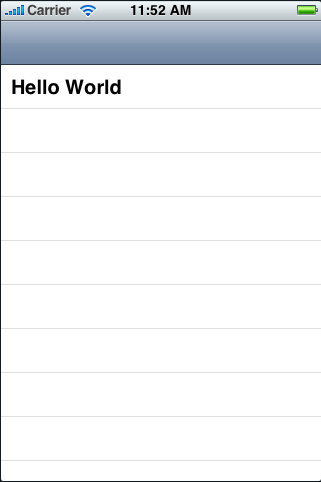
That’s it!  Click the Build and Go button again to launch the iPhone simulator.  You should now see a screen like this:
You can now use this code as a base for creating a Navigation Based application.  In a later tutorial, I will detail how to populate this table view with an array of strings to create navigation for a simple program.  If you get lost at any time, you can download the sample code for this program here hello-world.  I hope you enjoyed the tutorial and if you have any questions, feel free to leave them in the comments. Happy Xcoding!
  • Ryan

    Thanks for the tutorial. Looking forward to more of your examples.

  • Adam

    Hi, I appreciate your contribution to the iphone developers community. I’m learning how to program using xcode. I’m sure your blog will come in handy.

    I will check back regularly. Keep on writing.

    Cheers.

  • http://www.fuxion.com/?p=47 iPhone and iTouch Hello World Application : fuXion :: Just learn it!

    [...] Update: Here is another step by step that applies to the SDK V. 2.0: http://icodeblog.com/2008/07/26/iphone-programming-tutorial-hello-world/ [...]

  • Francis

    Thanks for the tutorial. I learnt something from it. :) Keep it up!

  • http://icodeblog.com/2008/07/29/iphone-programming-tutorial-beginner-interface-builder-hello-world/ iPhone Programming Tutorial – Beginner Interface Builder Hello World | iCodeBlog

    [...] my last tutorial UITableView Hello World I said that there are many ways to write a “Hello World” tutorial for the iPhone.  [...]

  • Jon

    Thanks SO much!! It is nearly impossible to find tutorials so far, and I am very psyched to have found your excellent site!! Looking forward to more, and more complex lessons!! THANK YOU!!

  • http://www.icodeblog.com Brandon

    Jon,
    You’re welcome! I’m happy that I was able to help you out. When I was first learning iPhone development I had the same problem. That is the exact reason that I started this blog. Thanks for reading…

  • http://icodeblog.com/2008/07/30/iphone-programming-tutorial-connecting-code-to-an-interface-builder-view/ iPhone Programming Tutorial – Connecting Code to An Interface | iCodeBlog

    [...] Hello World Tutorial Using UITableView [...]

  • http://icodeblog.com/2008/08/03/iphone-programming-tutorial-transitioning-between-views/ iPhone Programming Tutorial – Transitioning Between Views | iCodeBlog

    [...] We will be utilizing Apple’s UINavigationController. I will be using the code from the “Hello World” tutorial that I previously wrote. So if you have not completed it yet, go ahead and do it [...]

  • Bob Schoenburg

    Great tutorial. I have searched for hours but cannot find a way to determine which row has been selected “touched “in a table.

    Can you help?

  • YnOt

    Nice one dude, im a total beginner and your advice is my bible at the moment, i cant emphasize how useful this sort of info is…many thanks and keep them coming!!

  • http://www.iphonedev.jp/2008/08/08/iphone%e3%81%ae%e9%96%8b%e7%99%ba%e3%80%81%e3%81%a9%e3%81%93%e3%81%8b%e3%82%89%e3%82%b9%e3%82%bf%e3%83%bc%e3%83%88%ef%bc%9f/ iPhone Dev · iPhoneの開発、どこからスタート?

    [...] iPhone Programming Tutorial – UITableView Hello World [...]

  • http://icodeblog.com/2008/08/08/iphone-programming-tutorial-populating-uitableview-with-an-nsarray/ iPhone Programming Tutorial – Populating UITableView With An NSArray | iCodeBlog

    [...] UITableView Hello World [...]

  • http://www.shokk.com/blog/ Ernest Oporto

    Thanks for another simple example. I wish more tutorials moved at this pace, especially since you’re teaching some Objective-C along with Interface Builder and iPhone programming nuances.

  • J

    Nice to see a site like yours – Thanks.j.

  • http://Thanks Sarath Joseph

    Very good for starting out with explanations to all the main questions. I look forward to reading all your other tutorials. Thanks

  • Brook

    Thank You very much….. I’m a total beginner never programmed anything before…. I got so excited when “Hello World” appeared!

  • Tom

    Well-explained, simple, and succinct. At last a good tutorial for the iPhone.
    Congratulations on a job well done.
    I look forward to seeing more of these!

  • http://www.storypixel.com Sam Wilson

    Short, smart, and sweet. You, sir, are the man. Apple should hire you.

  • Ankit Thakur

    Thanks for such a nice tutorial.

    Sir, I am trying to display image and Text both in my UITableViewcell
    where I am able to display both, but able to make the size of cell equals to the size of the image, as image size is large enough.
    Here is my code, please check it.

    - (UITableViewCell *)tableView:(UITableView *)tableView cellForRowAtIndexPath:(NSIndexPath *)indexPath {

    static NSString *MyIdentifier = @”MyIdentifier”;

    UITableViewCell *cell = [tableView dequeueReusableCellWithIdentifier:MyIdentifier];
    if (cell == nil) {
    cell = [[[UITableViewCell alloc] initWithFrame:CGRectZero reuseIdentifier:MyIdentifier] autorelease];
    cell.accessoryType=UITableViewCellAccessoryDetailDisclosureButton;
    }
    /**************************************************/
    NSMutableArray *array = [NSMutableArray arrayWithObjects: @"Aquarius", @"Aries", @"Cancer", @"Taurus",@"Capricorn",@"Gemini", nil];
    //index path is definately required
    int x=indexPath.row;

    NSString* imag1=[[NSBundle mainBundle] pathForResource:[array objectAtIndex:x] ofType:@”png”];
    UIImage* myImg=[[UIImage alloc] initWithContentsOfFile:imag1];
    CGRect imageRect=CGRectMake(0.0, 0.0, 100.0 , 100.0);
    cell = [[[UITableViewCell alloc] initWithFrame:imageRect reuseIdentifier:MyIdentifier] autorelease];
    cell.accessoryType=UITableViewCellAccessoryDetailDisclosureButton;
    cell.text=[array objectAtIndex:x];
    cell.image=myImg;

    /***************************************************/

    // Set up the cell
    return cell;
    }

    Please help.

  • http://www.icodeblog.com Brandon

    LOL, thanks man. When I apply, I’ll be sure to put you as a reference.

  • demuro1

    WOW this was awesome. I’ve been trying to make something like this work for a few days now based off of a tutorial from another site and it just keeps crashing the simulator. Thanks a million

  • http://www.appliedrelevance.com George Everitt

    I have 20+ years hard-core programming experience – none of it with Objective-C or Cocoa. I’m on week 2 of heavy-duty cramming to write an iPhone app, rewiring my 40+ year-old synapses to deal with Apple’s flavor of MVC. Last time I spent this much time with a new language was 1996 when I learned Perl. Wish me luck.

    Thank you for this site – it is the best resource that I’ve found so far. If Apple doesn’t hire you, give me a shout.

  • http://geekcore.com.au Pat

    Awesome!
    I’m in the process of learning how to program on the iPhone, and this is the first tutorial that ive ever seen that delivers what it promises!
    My only suggestion would be for a seperate tutorial that go into even more detail about the individual files that are created when you first make an app. (this is more for a sense of completion, as your brief descriptions are fine, as is)

    Otherwise, an awesome tutorial! This site is bookmarked, and sure to become one of my “morning checking spree” websites, up there with tuaw.com, kotaku.com.au, and engadget.com!

    well done! :)

  • http://www.rawhoo.com Harry Wang

    Nice blog. I wish I had found this a few weeks back. I have read something like 700+ pages of SDK PDF documentation pages from Apple’s iPhone Dev section of the Apple web site. You could have shaved some time off my learning!

    I thought I would share some comments on your “beginning” tutorial that will hopefully alleve newbie fears for the commonly held belief that iPhone application development has a steep learning curve. It does feel steep if you are unfamiliar with the language and the tightly coupled SDK. Newness on two “fronts”.

    This is mainly meant for folks not completely new to programming.

    First, read a good Objective-C overview or tutorial that is not on the Apple website. One I found useful was:

    http://cocoadevcentral.com/d/learn_objectivec/

    The Apple overview on Interface Builder (IB) for iPhone development is not too confusing but may be a bit too much. You may want to browse it a little or find some third-party tutorial out there. Brandon does delve into it here but thus far he mainly has you complete steps within it but does not really explain what those steps are actually doing. Although, to be fair, I have not gone through every single tutorial here yet.

    Then go straight to good iPhone application tutorials such as on this site. Just jump in and get your feet wet.

    Delve deeper into some Apple Objective-C documentation to clarify a few language things (such as memory management).

    Finally, refer to the Apple SDK documentation to clarify SDK properties and methods/messages you see in the tutorials (although Brandon is covering the ones he uses pretty well). Also good to discover some you don’t see mentioned but could come in handy.

    Keep this in mind when reading Apple documents:

    The Apple iPhone SDK documentation, as well as their documentation on Objective-C and such, are written very concisely and almost in a circular reference fashion. This is necessary in programming docs but seems to be quite excessive in this case due to the writers being pretty thorough. Forward references, so to speak, abound in these docs (or I read the documents in the wrong order!).

    To read, no, to understand them, you must read a doc, understand part of it, scratch your head on the rest of it, and then go read more docs on similar topics. With the new docs read, you will have a few “a-ha” moments but you will have bigger “a-ha” moments when you go back to the previous doc and re-read parts of it.

    Be sure to read in a calm, quiet atmosphere when reading Apple docs. I can read ASP.NET or Ruby stuff at a party and almost understand it perfectly but for some reason, this Objective-C/Cocoa hybrid takes concentration. I think it is the dang doc writing style.

    Once you are comfortable, there are a whole slew of sample applications on the Apple iPhone dev web site. The “TheElements” one was pretty straightforward as are a few others.

    This was more of a “pat on the back” to those who may start feeling helpless or lost at some point (prior to discovering awesome tutorial sites like this one). If you came to this site but are about to give up, don’t. Follow my advice above and rest easier.

    Harry “no, I don’t know Brandon” Wang

  • http://Greatework lennie gordo

    simple direct and helpfull

  • http://www.ChipAndKim.tv Chip McAllister

    Hey Brandon . . . THANK YOU!!! Man, I was SOOOOO overwhelmed before finding this site. I was ready to give up learning to program for the iPhone all together. I was a programmer about 8 years ago (Dynamic Database Application Developer using .ASP’s mostly with SQL Server and even Oracle sometimes). However, now that I am getting back into it, I am going to bite the bullet and familiarize myself with OOP, specifically C, C++ and everything pertaining to building iPhone apps. I have finished all of your tutorials and am STILL extremely fuzzy on most things . . . HOWEVER, your tutorials give me tremendous glimpses of hope that I will become proficient at developing iPhone Apps soon. If you know other (NON-CRYPTIC-APPLE DOCUMENTATION) sources for me to come up to speed like websites, books, online training courses or even training courses in Southern California, please let me know. In parting, I must say again THANK YOU, BRANDON . . . You have been a great help to me.

  • http://donny.blogdetik.com donnykbs

    Great tutorial for newbie like me, It’s simple, nice and most important, it works, thanks :D

  • Fred

    Thx…very helpful

  • gonso75

    Thanks for the tutorial!

  • Rene

    My first iPhone app…

  • mha

    One question: testing application in simulator is great during development process, but is there a way how to upload it to the real device and test it on real iPhone/iPod touch? Or is the AppStore the only way to do it?

  • Surane

    Thanks,

    Juste for fun :

    replace

    [cell setText:@"cell"];

    with

    [cell setText:[[NSString alloc] initWithFormat:@”Cell : %d”,indexPath.row]];

  • Hardik Thakkar

    Thanks a ton!

    You’re doing a wonderful job.

    This one is way too simple than Apple’s Hello World which made me nervous about Objective-C!

  • Deus.!

    Thankyou!!!

    Wonderful tutorial, really the best I have seen. I like how you explain the code. This is the best hello World I have seen out of about 8 that I have already seen.

  • http://www.archetoy.com Archetoy

    Brandon, thanks so much for sharing your ideas and tutes with the world.
    I am just starting into dev, and coming from a design/ideas only background, this is all new to me. luckily, your tutes have opened up my eyes. I still suck, but @ least i know what needs to be done.

    Msg me if you need any graphics to support any apps mate, i may have a few ideas if you have spare time to develop =)

  • http://www.chirongames.com Shawn

    Thanks!

  • http://www.alexwhittemore.com/?p=25 alexwhittemore.com » Blog Archive » iPhone development 101

    [...] specifically this post (coral). This is another blog to keep in your bookmarks folder, but the specific post above also [...]

  • http://iappdevs.blog.co.in/2008/12/02/iphone-programming-tutorial-uitableview-hello-world/ iPhone Programming Tutorial – UITableView Hello World | iPhone Apps Dev

    [...] Create a New Navigation-Based Application [...]

  • Rob

    I would like to be able to do the exact results of this app. But instead of using a tableview, I would like to have my own view with a UIButton. When i push the UIButton I want to go to the View2. how would I accomplish that?
    Thanks,
    Rob

  • Ghulam Mustasfa

    Very nice, for absolute beginners.

  • http://dougpete.wordpress.com/2008/12/19/links-for-2008-12-18/ links for 2008-12-18 « doug – off the record

    [...] 18, 2008Manymoon – Online To Do List, Task and Project Management with Google Docs December 18, 2008iPhone Programming Tutorial – UITableView Hello World | iCodeBlog December 18, 2008CAREER TOOLBOX: 100+ Places to Find Jobs December 17, 2008Official Gmail Blog: New [...]

  • http://ranahammad.wordpress.com Rana Hammad

    Hello,

    nice blog and thanks for your tutorials.

    I want to ask one thing; is it possible that I can reorder the rows in tableview at runtime?

    Waiting for a positive reply.
    Thanx
    Hammad

  • http://www.freshapps.com Brandon

    @Rana,

    Are you talking about letting the user re-order them or code to reorder them?

  • Tylor

    Thanks! Great and simple tutorial!

  • headly

    Brandon,

    You’re the man-don.

    I was getting close to despair at how hard this seems. These are a great help. Thanks also to Mr Wang for the pep talk.

    headly

  • http://thanks Don

    Thanks for your tutorials, they are well written.

  • http://stargatecomplex.com Jayson

    Awesome! exactly what I’ve been looking for. I am a PHP programmer myself and all new stuff I have to learn to get my iPhone ideas out is hurting my head. Thank you for a clear breakdown on all these.
    :D

  • rethish

    thankyou for the tutorial .

    Excpecting more helpful tutorials from icode…

  • rethish

    thankyou for the tutorial .

    Expecting more helpful tutorials from icode…

  • asaf

    Great website….please keep it going…

  • reelverse

    Great site. I had to pay $40 bucks for a tutorial book when I could have come to this site? Sad.

    Here’s my questions:
    How do I get a UITextView to show up when the Hello World button is pressed. Type slowly, I’m new at this.

    thanks

  • AE

    FINALLY! Someone who knows what they’re talking about. I have a serious doubt that other developers who make tutorials know anything about what they are demonstrating. Notice that the other tutorials never describe what the .m and .h files do. This one does! Other tutorials never describe anything by theory and it takes forever to learn something without theory.

    Good Job!

  • Chris

    Hi Brandon,

    Great tutorial. I’m looking forward to going through them all. Just a couple of things that might get absolute beginners like me a bit tripped up.

    1. “The code between the i(cell==null) block checks to see if we have created a cell before, if not build a new cell, otherwise use the one we created before.”

    I think you meant “the code between the if(cell == nil) block” in this part of the tutorial.

    2. In the screen image where you add “[cell setText:@"Hello World"];”, I don’t think there should be a “|” character after the “;”. This might be a typo when typing return on your keyboard :-) .

    Again, great work and thank you for taking the time out for these tutorials.

  • http://www.danvanwinkle.com Dan VanWInkle

    Great tutorial!!!

    I did notice a problem (although not big)… You say in the beginning click XCode -> New Project, and it should be File -> New Project…

    Thanks again, keep up the great work!

  • http://scarfoo.com Scarf*oo

    Working through your tutorials, thanks they are a good read and slow paced, just as I like them :)

  • http://xnanoob.exteen.com xnanoob

    thank ka

  • Innkeeper

    Thanks for helping with this tutorial! This is my first try at iPhone development and your tutorial explained that dizzy array of files that get dumped into the project. Cheers!

  • http://thinkjoke.servemp3.com Rush

    Hey brandon love your tutorials but I have a question, how do I make it so that i can display multiple lines of text that say differnt things on different rows, eg: row 1=Hello World
    row 2=Goodbye World. Can you help?

  • Ramel Singh Rana

    Thanks, its very good for the beginners.

  • http://www.youtube.com/richimf Richie

    Hello, your tutorial is very good.!

    I have a question, how can i compile my project in xcode, i want to make an .ipa file, i don’t know how.

  • http://ranahammad.wordpress.com Rana Hammad

    @Brandon(December 24th, 2008 at 9:52 am)…………..sorry for not coming back to you earlier…………

    Actually I did not explore the library well before…………but did get my answer that we can write our re ordering functionality in UITableViews provided functions …………….. anyways………….thanx for your guidance

    Learning more from your tutorials. Thanx again
    Take care ;)

  • jayjay

    Thanks for your effort! These are the first tutorials where everything is explained in a logical fashion. I am quite familiar with OOP from as3 and I’ve read the basics for Objective C, but still I’ve been struggling with getting started. You have succeed where most other tutorials fall short: maintaining just the right level of detail to keep the reader interested and still able to understand what is going on.

    I’m a teacher myself (as3, php, xhtml, css), so I recognize a job well done when I see it. Thanks!

  • rickO

    Great tutorials! Like the previous posts, it’s easy to follow.

    One note though, it doesn’t work within the latest version of the SDK (3.0). I had to use the previous version.

  • http://www.jal.com jal H

    great :)

  • http://www.mobiledev.com.br/2009/03/27/hello-world-no-iphone-parte-1/ “Hello World” no iPhone – parte 1 | MobileDev

    [...] Neste artigo do iCode você encontra os passos para criar seu primeiro ‘Hello World’ para iPhone. O artigo mostra passo a passo como criar a aplicação, quais os arquivos gerados e o porquê de sua existência. O detalhe é que são poucas linhas de código, e o resultado sai naquela tabelinha que caracteriza as aplicações iPhone. [...]

  • http://ashwanik.blogspot.com ashwani

    Hi,
    I am new to IPhone development and this tutorial gave me the feel.
    Thanks for the tutorial :)

  • saurabh

    Thanks its a wonderful n helpful tutorial for the beginers. :)

  • http://ashwanik.blogspot.com Ashwani

    Hello All:
    I am new to application development for Iphone.
    Can any body help me in explaining the criteria for selecting project template for application. I mean how to decide which project template is to be used and why :)

    I have one more favor to ask

    Can any one tell me how to transfer data between views

    Thanks in advance

  • http://flexid.be lex

    Your tuts are very helpful. Thanks a lot.

  • Reetu

    Hi there,

    I was just wondering what kind of permission you do before putting your code online ….

    Because I made this litle code, it runs on my XCode 3.1.2 perfectly, and I gave this code(whole project including .xcodeproj) to my friend to run it on XCode 3.1.3 …. and it doesnt compile. it gives bunch of error while compiling like following:

    Checking Dependencies
    warning: couldn’t add ‘com.apple.XcodeGenerated’ tag to ‘/Volumes/swaraj yadav’s Public Folder/TypeWriter/build/TypeWriter.build’: Error Domain=NSPOSIXErrorDomain Code=13 UserInfo=0x36cf230 “Operation could not be completed. Permission denied”
    error: ‘/Volumes/swaraj yadav’s Public Folder/TypeWriter/build’ is not writable
    error: ‘/Volumes/swaraj yadav’s Public Folder/TypeWriter/build’ is not writable
    Unable to write to file /Volumes/swaraj yadav’s Public Folder/TypeWriter/build/TypeWriter.build/Debug-iphonesimulator/TypeWriter.build/Objects-normal/i386/TypeWriter.LinkFileList (You do not have appropriate access privileges to save file “TypeWriter.LinkFileList” in folder “i386”.)

    so I am just wondering if you are doing some setting in your XCode project because I am able to run your code on my XCode , and my friend is also able to run your code on his machine.

    Any help will be deeeply appreciated !

  • Stephen

    You my friend, are the man! Best tutorial I’ve seen by far!

  • Graham

    Nice set of tutorials. Thanks a bunch!

  • Mike

    I’m well-versed in machine language, assembly, PHP, javascript and understand components of ASP and VBasic. But I swear I’ve never had so much difficulty as I’ve had learning how to program for the iPhone.

    Your tutorial was an excellent primer for me, and gives me a foundation to start grasping some core concepts.

  • Ben

    setText: is deprecated in iPhone OS 3.0+

  • Ben

    [cell setText:@"Hello World"]; will still work but

    cell.textLabel.text = @”Hello World”; would be a better choice for people because setText: could be dropped in later versions of the OS

  • http://jcostaman.com John Costa

    Am I the only one who gets the warning: ” warning: ‘setText:’ is deprecated (declared at /Developer/Platforms/iPhoneSimulator.platform/Developer/SDKs/iPhoneSimulator3.0.sdk/System/Library/Frameworks/UIKit.framework/Headers/UITableViewCell.h:199)”

  • Scott Calafiore

    No I get that too with the SDK 3.0 like stated above use cell.textLabel.text = @”Hello World”;
    instead of
    [cell setText:@"Hello World"];
    The second code will still work but it is more correct to use the first code. :)

  • http://mrburns05.com/blog Mrburns

    Hi I have a table view populated by an array of objects called from a database, the database has a column called “sort” that is an integer and I’ve set it up to set that integer = indexPath.row and it updates when I move the rows ,

    Bu I’m having trouble figuring out how to display the objects in the array with that “int” instead of with their PrimaryKey.

    If any one can help please drop me a line at mrburns08x@gmail.com

    would be greatly appreciated!! Thanks.

  • http://xQmail.eu magikMaker

    Wow, great. Thnx! Really learned something from this. On to your next tutorial… keep ‘em coming :-)

  • http://www.nyu.edu Mayank

    I wanted to know that in case of hello world if i wanted to show google and when the user clicks on that it should open the browser and direct one to google
    what should i do

    thanks a lot

  • http://www.frizzdesign.nl Thomas

    This is the first step! Thnx.

  • http://www.pegasyssoft.com prakash

    Hi ,

    Thanks its a wonderful n helpful tutorial .

    Prakash

  • http://blog.raffaeu.com raffaeu

    Hi interesting post but you forget to mention to change also the code that returns the number of rows …
    It should be in this way in order to works on iPhone SDK 3.0

    // Customize the number of rows in the table view.
    - (NSInteger)tableView:(UITableView *)tableView numberOfRowsInSection:(NSInteger)section {
    return 1;
    }

  • lgvalle

    Great tut, thanks :)

  • http://trinityinc03@gmail.com PSUN

    Fantastic Out Come:-)I learnt Creation from this Tutorial.Thanks For Providing .

  • http://informallearning.edublogs.org/2009/09/10/links-for-2009-09-10/ links for 2009-09-10 | Informal Learning

    [...] iPhone Programming Tutorial – UITableView Hello World | iCodeBlog (tags: programming development iphone) [...]

  • kixass

    thanks for the tut but this whole application structure looks more than redunant. now im forced to live with that. its still easier to create this row table navigation with html/css and javascript.

    setting a row count doesnt look good to me. it would be cooler if they would have provided a xml based output logic for this communistic row design shit.

  • http://technotweets.com devang paliwal

    Nice post…
    explained the complex part with a lot of ease ….:) U rock

  • http://iphon3n3wz.com iPhon3n3wz.com

    thank you very much for your tutorial. Learning something new everyday

  • Scotty

    Very nice tutorials, thanks!

    Can Navigation Controller only be used with Table View Controller, the two seem to be tied together, with the Add and Edit Nav Bar Buttons….

    I’ve been trying to get the Navigation Controller working with other View Controllers and that doesn’t seem to work, it’s always shown with Table Views, is that all you can use, at least as the root view?

    Thanks again.

    Scotty

  • http://www.alhnuf.com/ ameer
  • http://www.shuodui.com.cn Tim Lee

    Great Tutorial , i am new learner from beginning, Thanks from heart : )

  • Paras Dorle

    Hi,
    First u should learn ANSI C programming language and then learn Objective-C. There are lots of books available on net on this topics.
    -Paras Dorle

  • @ColouredBoxMobi

    Hey Brandon,

    Just getting into this iPhone stuff and your tutorials are working nicely :)

    Thanks very much-

  • Nina

    Hi,
    Im new to xcode.I just founded your tutorials and decided to start from scratch.
    Just by the beginning Xcode giving me an error of ” doesn’t match any valid certificate”. I searched on web and it said I need to validate the certificate on keychain access. I found so many different solutions and I confused. Can anyone help me in this matter please?
    By the way your tutorial is the best I have found so far. It’s about a month that I’ve been looking for a good tutorial.
    Fabulous job. Well done and Good luck.

  • Soundarya

    Nice tutorial for the starters. It helps in getting know-hows of the all the files which are created as part of the templates. Keep on publishing more of such tutorials. Good work!

  • Jose Muanis

    Hi, great for presenting the topic.

    In the last SDK,

    [cell setText:@"Hello World'];

    setText is deprecated, you should use instead:

    UILabel *label = cell.textLabel;
    [label setText:@"Hello World"];

  • Biplav

    Great work. Keep them coming.

  • Maddog2k

    Is it just me, or does this tutorial does not work with the latest “Navigation-based Application” project template from SDK 3.1.2? Any chance the tutorial will be updated?

  • Maddog2k

    Disregard my last post. This demo works with 3.1.2 but there is a trick… you must uncheck the “Use Core Data for storage” option when selecting the Navigation-based Application template.

  • http://www.epicdesign.com.au H

    Nice one, very detailed and short to the point.

    Cheers

  • http://spaquet.blogspot.com iCan

    [cell setText:@"My String"];
    Well, in 3.0 setText is deprecated and should be soon removed from sdk.

    The new way of displaying information is now to use
    [cell.textLabel setText:@"My String"];

    enjoy ;-)

  • j

    Keep writing simple pages like this, then anyone will be able to code for iPhone!

  • http://www.entdyn.com Korky Kathman

    When you do the Build & Run under SDK 3+ this will give a warning that setText is deprecated. What would the new syntax be?

  • http://www.entdyn.com Korky Kathman

    Woops should have read up a few posts first! Sorry!

  • schmicko

    The cell text is now a textLabel and a detailTextLabel.

    you could write:
    cell.textLabel.text = @”Hello World”;

    And … if you change the code just above for defining the cell and replace:
    initWithStyle:UITableViewCellStyleDefault
    – with -
    initWithStyle:UITableViewCellStyleSubtitle
    - then you can add:
    cell.detailTextLabel.text = @”Hello again”;

    here it is all together:

    if (cell == nil) {
    cell = [[[UITableViewCell alloc] initWithStyle:UITableViewCellStyleSubtitle reuseIdentifier:CellIdentifier] autorelease];
    }

    cell.textLabel.text = @”Hallo World”;
    cell.detailTextLabel.text = @”Hello again”;

  • K

    Great tutorial! Helped me a lot! Thanks!

  • http://www.getpcmemory.com Brian H

    hi very nicely explained. thanks for the effort !

  • HeoSuaVN

    Thanks for the tutorial.

  • Stephen Richards

    The setText method of UITableViewCell has been depracated.

    so the line should read:

    cell.textLabel.text = @”Hello World”;

  • http://www.idea.co.th/ Idea Digital

    Thank’s so much!

  • Palanichamy

    Nice tutorial for the beginners to learn. You have explained everything in detail.So everyone can understand. Please post so many examples. Thanks a lot for your wonderful work.

  • http://linonico.com LINO

    Nice tutorial, even better than the ones in the official iPhone tutorials. Keep it up,.

  • http://mizan102.wordpress.com/2010/02/18/iphone-tutorial-5-transitioning-between-views/ iPhone Tutorial-5 : Transitioning Between Views « Mizan's Blog

    [...] We will be utilizing Apple’s UINavigationController. I will be using the code from the “Hello World” tutorial that I previously wrote. So if you have not completed it yet, go ahead and do it and [...]

  • http://mizan102.wordpress.com/2010/02/18/iphone-tutorial-5-transitioning-between-views/ iPhone Tutorial-5 : Transitioning Between Views « Mizan's Blog

    [...] We will be utilizing Apple’s UINavigationController. I will be using the code from the “Hello World” tutorial that I previously wrote. So if you have not completed it yet, go ahead and do it and [...]

  • http://www.palewar.com Sachin Palewar

    Are you really doing this for free? You can probably start a professional iPhone dev course of yours. Apple docs can look pretty scary to a newbie.

    Your are really helping a lot of people. Apple should really pay you for doing this.

    Why don’t you have atleast a ‘Paypal Donate’ button on this blog? I am sure many readers would like to encourage you to keep writing these handy tutorials.

  • http://www.vhelpu.blogspot.com Qasim Shah

    i really really really enjoyed it thats very very very nice!!!!!!!!!!!

  • Liferoxx

    Hi pplz!
    THIS WAS AN AWESOME TUTORIAL!!!
    but…
    i’m trying make an add button like how there is on “contacts” ( + sign ) and when someone presses the add button it creates a new cell. How would i do that? Please could someone help me out?
    Thanks!

  • http://charles.lescampeurs.org/2010/04/10/starting-iphone-development MrBrown blob» Blog Archive » Starting iPhone development

    [...] UITableView Hello World [...]

  • adam d

    Hello,

    Thank you for making this tutorial however I have encountered an error and I was wondering if you might be able to help.

    [cell setText: @"Hello World"]; isn’t working for me because I have the iPhone OS 4 beta 2 installed and setText is deprecated.

    It tells me to use the property textLabel however I am unsure how to use it appropriately.

    Thank you for your help…

  • adam d

    nevermind sorry,

    cell.textLabel.text = @”hello world”; worked fine, just needed to hunt a little bit!

  • Fauad Anwar

    I got what i am looking for great.
    Keep It Up.

  • http://sivasankarmobiledevelopment.wordpress.com/2010/05/28/iphone-programming-tutorial-%e2%80%93-uitableview-hello-world/ iPhone Programming Tutorial – UITableView Hello World « Sivasankar's Blog

    [...] Create a New Navigation-Based Application [...]

  • http://sivasankarmobiledevelopment.wordpress.com/2010/05/28/iphone-programming-tutorial-%e2%80%93-uitableview-hello-world/ iPhone Programming Tutorial – UITableView Hello World « Sivasankar's Blog

    [...] Create a New Navigation-Based Application [...]

  • chandra

    very nice.. it’s very helpful

  • Adam Gerety

    Nice! Thanks for posting this…

  • jf

    You are doing awesome work! Thank you very much for sharing so much great information with people in a nicely presented and well thought out way.

  • Jacqueline

    Hello there. I have just come upon your tutorials (after a confusing few days on Apple’s site). I’m very much looking forward to going through them. They seem really straight forward, easy to follow. Thanks.

  • Edgar

    thank you so much~

  • http://mindtreasury.com/?p=150 Mind Treasury – knowledge sharing portal form CodeNColors » Blog Archive » Basic UITableView Tutorial

    [...] Create a New Navigation-Based Application [...]

  • http://www.spectere.net/ Ian

    [[cell textLabel] setText:@”Hello World”]; also works if you want to make it look more Objective-C-ish.

    [cell.textLabel setText:@"Hello World"]; is also valid.

  • http://www.uwsp.edu/athletics/mbb/06-07/schedule.htm Schedule

    Best you could make changes to the webpage title iPhone Programming Tutorial – UITableView Hello World | iCodeBlog to more catching for your webpage you write. I enjoyed the post all the same.

  • Shri

    Nice tutorial.
    [cell setText:@"Hello World"];
    is deprecated.
    cell.textLabel.text = @”Hello World”;
    works better

  • http://www.dotnetgo.com/ sql server monitoring

    This is a exellent resource. Ill be back.

  • Brian

    Thank you so much for a wonderful, short but straight-forward tutorial for beginners like me…I tried to follow the tutorial on how to build an iPhone app using the documentation of apple but waaa….too many words, explanations…for a start I want a fast but straight-forward one like this…I’ll just get back to those docs and references if I want to dig down more on a specific domain…

  • sathis

    fine.. very thanks

  • http://www.comf5.net video marketing made easy

    This is a super. Loving it dude!

  • http://www.worldoftrade.com/ Rolex Sea Dweller

    Great Information and post! It is very informative and suggestible for the user of solar energy, May I think it can be beneficial in coming days…

  • http://www.worldoftrade.com/ Rocawear Shoes

    Nice information provided here which is very useful to everyone…I am not a huge fan of this side, there do seem to be a lot these days…thanks for posting…Let me know more about this one

  • http://www.cygnismedia.com/ cygnis media

    This post is different from what I read on most blog. And it have so many valuable things to learn.

  • http://www.e-mtns.com Michael Yokoyama

    I am struggling to make this come up as a View Controller.
    I want to have the main screen have a button that says: “Go”
    and then have it do this Hello World program.

    It is because I am doing something similar, and I already have an applicationDidFinishLaunching in that program…

  • http://leupold-rifle-scope.com Leupold Rifle Scope

    You certainly deserve the spherical of applause for your publish and much more specifically, your site in general. Very high quality materials

  • http://www.digital-canopy.com Brian Kuyath

    Another great, simple tutorial for someone just getting started. Much appreciated.

  • http://www.carteenee.com/ รถยนต์มือสอง

    I’d have to give blessing with you on this. Which is not something I typically do! I love reading a post that will make people think. Also, thanks for allowing me to comment!

  • Morgan

    A new book covering the basics: Programming From Scratch by Gary Crandall available here http://www.perfscipress.com/programming-from-scratch/

  • http://www.fanpagespro.com Facebook Marketing

    wow

  • Paresh Rathod

    Yes i enjoyed it.. i was very much excited to see Hello World.. coded by me..!! :)

  • Anton

    May I use translation of your tutorials in my blog? Sure with active link to original page. Thanks.

  • Anonymous

    This is great think about

  • http://www.getaphpprogramer.com php programer

    Hello.This post was extremely fascinating, especially since
    I was browsing for thoughts on this matter last couple of days.

  • Anonymous

    iPhone is really nice ,I like it so much.

  • Anonymous

    Thanks for your article! It’s very helpful for me!

  • Fabrizio Prosperi

    Thank you for this, I plan to read all the others. 

    To give something back, update it for 3.0:     [[cell textLabel] setText:@”Hello World”];

  • Kishore Chidipudi

    Nice and clear, I enjoyed writing Hello World from this blog :)  

  • Smartsanja

    iPhone, iPad & iPodTouch apps development learning portal
    http://iworldzz.wordpress.com/2011/06/18/lets-say-hello-wolrd-from-iphone/

  • Anonymous

    iPhone, iPad & iPodTouch apps development learning portal
    http://iworldzz.wordpress.com/...

  • Bhaskararama Kattamuri

    When i build this in XCODE 4.0.2,i got 3 errors like below,
    1.’autorelease’ is unavailable: not available in automatic reference counting  mode
    2.Automatic Reference Counting forbids explicit message send of ‘autorelease’
    3.Lexical or Preprocessor issue –clang failed with exit code1
    and two warnings are as follows,
    1.’initWithFrame:reuseIdentrifier:’ is deprecated
    2.’setText:’ is deprecated

    what should we do to rectify these errors.

    Thank you

  • http://www.facebook.com/people/Ankita-Gupta/100001814270166 Ankita Gupta

    Really very Good source for the topic…

  • tommygun

    How do you allow the user to add their own people to the table?

  • Dddddd

    junk material….

blog comments powered by Disqus