iPhone Programming Tutorial – Creating a ToDo List Using SQLite Part 3

  • Twitter
  • Facebook
  • Digg
  • Reddit
  • StumbleUpon
  • del.icio.us
  • Google Bookmarks
September 10th, 2008 Posted by: (ELC) - posted under:Tutorials

This is part 3 in our multipart series of creating a todo list for the iPhone.  For this, you must have completed the following tutorials.

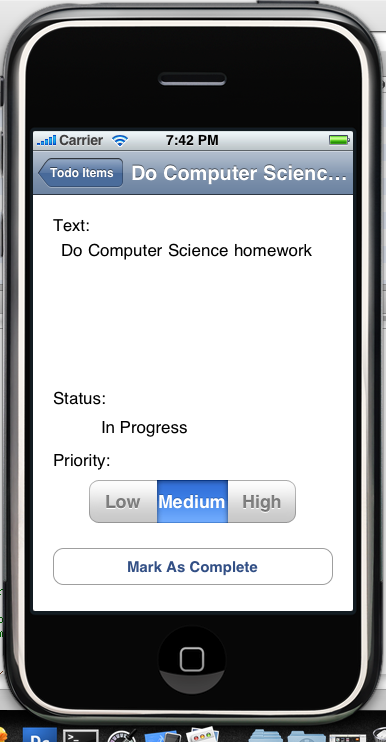
The focus of this tutorial will mainly be on viewing the todo items when selected.  I will also show you how to update the todo status.  This will require us to use interface builder.  When you are completed, you will be able to edit todos through an interface similar to this:
Bringing Your Code Up To Speed

For this tutorial, we will need to get the last variable from the todo database.  This is of course being the status variable.  If you recall, it’s a boolean value (1 for complete, 0 for in progress).  We need to get it from the database and associate it with the todo object.  First let’s create a property to hold this value.  Open todo.h and add the following code:

So a few changes here…First there is the added NSInteger status.  This will be the property we associate with the status (complete or not) of the todo.  We also create a property from it.  Next, there is a BOOL property called “dirty”.  We will use this object to signify when a todo has been altered.  You will see how this comes into play when we implement the dehydrate method. Also, I have added 3 method signatures.  updateStatus will be the method called when we want to update our status variable.  Similarly, the updatePriority method will be called to update the priority.  Finally, we have added a dehydrate method.  This method should be familiar (or confusing) if you have messed with Apple’s books example.  Basically, it will be used to save the state of the todo to the database.  We will be calling this method on each todo item when the program exits.  I will show you how to do this in a little bit.

Be sure to add the status variable to the synthesize line.  Also, as we did before, we need to create a static sqlite3_stmt to hold the compiled dehydration statement.  Add the following code to Todo.m:

Now let’s implement the methods.  Add the following code:

The first two methods (udpateStatus and updatePriority) are pretty strait forward.  They update the status and the priority of the todo and then set the “dirty” property to 1.  This signifies that the todo has been altered and will need to be saved to the database.

Finally, there is the dehydrate method… We will call this method on each todo upon termination of the program.  If the todo is “dirty” meaning the dirty property was set to YES, we will need to save the new data to the database.  The database code should look pretty similar to code in previous tutorials.  First, we check to see if the dehydrate_statement is equal to nil.  If you recall, this will only happen the first time this method gets called.  Next we create the update statement and then bind our variables to each of the “?”‘s.  Notice the ordering.  The numbers represent the question marks from left to right (1 being the first, 2 being the second, 3 being the third).  It took me quite some time to figure this out.  Finally, we execute the sqlite statement by calling sqlite3_step and then reset the statement.

The last thing we need to do to Todo.m is change the SELECT statement in the initWithPrimaryKey method to grab the ‘complete’ field.  Update the code to look like the screenshot below:

There are not really many changes.  The first change is the added status to the synthesize line.  Next, the sql statement was updated to read

SELECT text,priority,complete FROM todo WHERE pk=?

This allows us to get the “complete” field from the database.  Finally, there is the line “self.status = sqlite3_column_in(init_statement,2);”.  This is assigning the status property to the data at index 2 in the sql data array.  We can now use this field.

One thing we need to do for the navigation to function properly is add a title to our main view.  Open up rootViewController.m and add the following code to the viewDidLoad method:

Create the Todo Detail View

Now we are going to create the view that will display when the user selects the todo in the UITableView.  Go ahead and open up Interface Builder by selecting one of you existing nib (.xib) files.  Once it’s open add a new View by clicking File -> New and select View. Drag the following controls.

  • UITextView
  • UISegmentedControl – For this you will need to set the number of segments to 3.  You will also see a dropdown menu below this option.  Select each segment and fill in one of the priorities for the title.  Here is a screenshot. You should give a title to each (Low , Medium, High).

  • UILabel – This will be used to display the status
  • UIButton – Users will click this button to update the status (Mark as complete)

When you are done, your interface should look something like this (but probably better):

I know that my interface doesn’t look the coolest.  I’m a programmer not a graphic designer… Ok save this view by pressing Command-S.  Make sure you are in your current projects directory.  Name it TodoViewController and press Save.
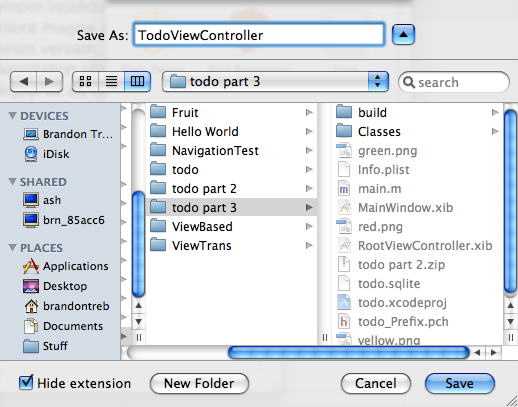
It will then ask you if you want to add it to your project. Check the box next to the word todo and click Add.

Now close Interface Builder.  Next, we are going to add the viewController class and set up variables to interface with this view.

Create TodoViewController Class Files

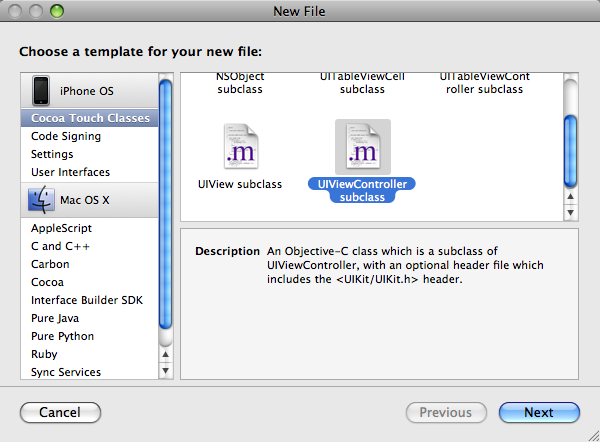
Click File -> New File… Select UIViewController Subclass and click Next.
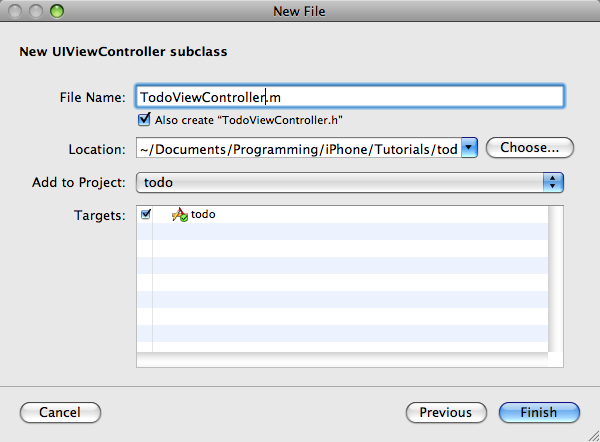
Name the file TodoViewController and make sure that the box that says “Also create TodoViewController.h” is checked and click Finish.
Open up TodoViewController.h and add the following code.

Basically, we are setting up Interface Builder Outlets for each of the UI components to be connected to.  Notice, the UIButton has an IBOutlet.  This is because we will need to update the text on the button depending on whether or not the todo is completed.  Also, I have an IBAction called updateStatus.  We will be connecting this to the button we created.  It will toggle the status (pending/complete) of a todo item.  Finally, we see the updatePriority method.  This method will be called when the user selects one of the priority segments in the UISegmentedControl. Next, open up TodoViewController.m and add the following synthesize code:

This will allow us to get and set these variables.

Before we connect this code to the Interface, we need to implement the methods that will be called when the user presses the button to mark a todo as complete as well as when the user presses a segment in the UISegmentedControl.  Inside of TodoViewController add the following methods.

Let’s go through this.  First we see the updateStatus method.  This gets called when a user presses the button to alter the status.  We basically check the current status of the todo (whether or not it’s completed) and depending on that, change the text to be displayed on the UIButton.  So, if the todo is not complete (in progress) and this button is pressed, the text will be changed from “Mark As Complete” to “Mark As In Progress”.  Finally, we call the updateStatus of the todo and pass the new value (1 or 0) to it.

Next we see the updatePriority method.  It simply reads the value of the UISegmentedControl by calling the selectedSegmentIndex method on it.  The next part looks a little messy.   There are 2 reasons that reason we can’t just pass the value of the UISegmentedControl directly to the method.  The first is, the UISegmentedControl is ordered in acending order (1, 2, 3…), but our priorities are in descending order (3 = low, 2 = medium, 1 = high).  This is where the “2 – priority” comes from.  Next, UISegmented controls are “0 indexed” meaning the indices start at 0 and increment from there.  So we need to add a “+1″ to the index as our todo priorities start at 1.

Now we need to connect the UI Components in Interface Builder to this code.  Double click on TodoViewController.xib to open it in Interface Builder.

Connecting UI Components To Code

We first need to associate this view with the class we just created.  In the Interface Builder, click on the File’s Owner object.  Next click Tools -> Identity Inspector.  You should see a drop-down next to class.  Select TodoViewController from this list and you will see the variables we just created appear in the boxes below.

This is what the Identity window should look like after you have selected TodoViewController.

Now that the class is associated, we can begin connecting the components.  We will start by connecting the view.  Click on the top of your view window to select the view itself (make sure you haven’t selected any of the UI components).  Click Tools -> Connections Inspector.  Next to where is says “New Referencing Outlet” click in the circle and drag it to the “File’s Owner” object and release it.  The word “view” should pop up.  Click on the word view.  It should now look like this.
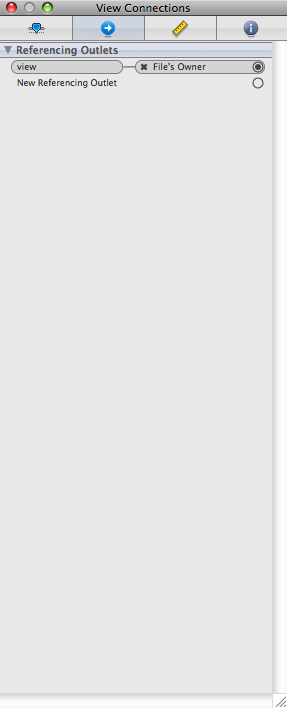
Now repeat these steps for each of the components (UITextView, UISegmentedControl, UILabel, UIButton) connecting each to the “File’s Owner Object”.   Instead of the word “view” popping up, you should see the variable name for the corresponding variable that you want to connect the component to.   So for the UITextView, you should see the word “todoText” appear when you drag it to the File’s Owner object.

We need to connect the UIButton to the updateStatus method we created.  To do this click inside the “Touch up inside” circle and drag it to the “File’s Owner” object.  You should see the text “updateStatus” appear.  Click on it.  If all goes well it should look like this.
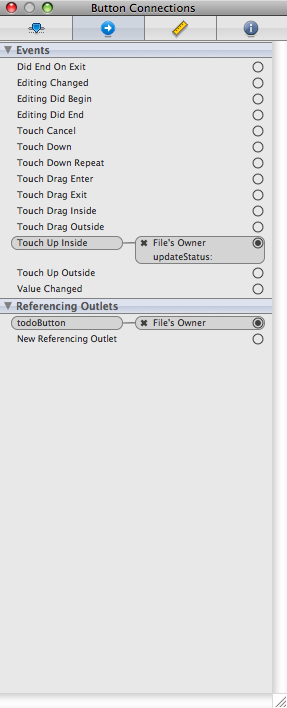
The last thing we need to do inside of Interface Builder is connect the UISegmentedControl.  Click on it in your view and then click Tools -> Connections Inspector… Click on the circle next to the “Value Changed” method and drag it to the “File’s Owner” object.  You will see the method updatePriority popup.  Go ahead and click on it.  Your window for the UISegmentedControl should now look like this:

Now, let’s display this view when a row is selected.  Close Interface Builder and open up RootViewController.h and add the following code:

We need a variable to associate with the TodoViewController that we will be transitioning to.  Next, open up RootViewController.m and add the following code to synthesize this property.

Keeping the UITableView Up To Date

Whenever a todo item is altered (status or priority) the UITableView needs to be updated with the new changes.  Add the following code to the viewWillAppear.

The line [self.tableView reloadData] reloads the table data every time the view appears (or reappears).  This will ensure that our table is always up to date.

Now add the following code to the didSelectRowAtIndex method:
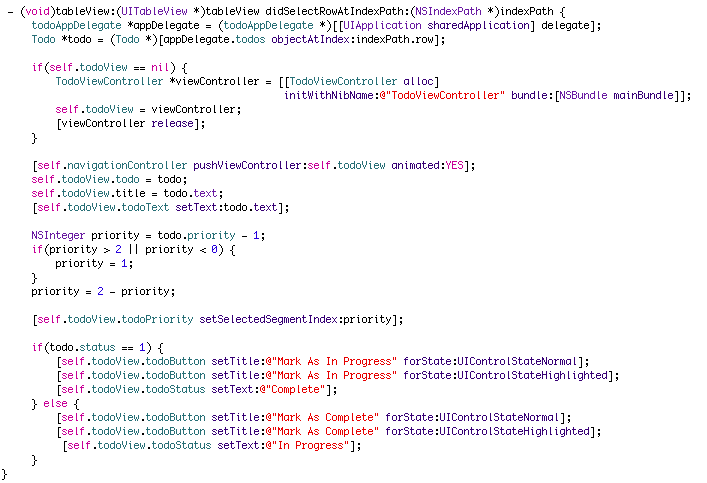
This is quite a bulky method with a lot of familiar code.  First, we get a handle to the appDelegate and the todo object that was selected.  Next, we push the todoView (the view you created in interface builder) on to the viewController stack to transition to it.  After that, we are setting some of the properties of the view.  The title is set to the text of the todo (it will get truncated if it is too long) and the UITextView is also set to the todo text.  Next, we are translating our priority to an index for the UISegmentedView.  I explained why this was necessary above.  Then the index of the UISegmentedControl is set by using the setSelectedSegmentIndex method.  Finally, we set the text of the button and label based on the status of the todo.

The very last thing we need to do is tell the application to save itself when it closes.  Open up todoAppDelegate.m and add the following code to the applicationWillTerminate method:

If you ask me, this is some freakin sweet functionality.  The method “makeObjectsPerformSelector” is a built in method on an NSArray.  It basically loops over every object in the array, calling the method you pass in to it on each one.  It’s like doing a for loop and calling the todo[x].dehydrate method for each todo.  Only this is much cleaner.  So, to reiterate, this method will call the dehydrate method on each todo.  If the todo is “dirty” meaning it was altered, it will be saved to the database, otherwise the dehydrate method will do nothing.

* One thing to note.  The applicationWillTerminate method will not be called if you quit the simulator while the application is running.  To make sure it gets called (and the todo data gets saved) make sure you press the home button on the simulator after you make alterations to the todos.  If you simply press Apple-q and quit the simulator while inside of the todo program, no data will be saved and you will post angry comments on my site telling me that my tutorial is wrong.

Click Build and Go and just sit back and enjoy the magic of rock! I mean XCode…

When you select a todo item, your screen should look something like this:

Well, that concludes part 3 of our series.  Join me next time, when I will show you how to add and delete todos from the SQLite database. If you have any comments or questions, feel free to leave them in the comments section.  I would love to hear them.  Please subscribe to the RSS feed if you want to be automatically notified of new tutorials.  If you get lost at any point, you can download the sample code for this tutorial here.

Happy iCoding!

  • Yali

    Compiled and got 2 warnnings:
    warning: “UILabel” may not respond to ‘-setTitle’
    under the statement
    [self.todoView.todoStatus setTitle:@"In Progresss"];

  • Yali

    does not work due to the above warnings at compile time. Got following error messages when running:
    Terminating app due to uncaught exception ‘NSInvalidArgumentException’, reason: ‘*** -[UILabel setTitle:]: unrecognized selector sent to instance 0x46d2c0′

  • Yali

    I have noticed another thing. you says above: “Notice, the UIButton has an IBAction…”
    did you mean IBOutlet here and it is just a typo ?

  • http://www.timconradblog.com Tim

    I really appreciate you taking the time to prep these tuts. They are great learning tools.

    I noticed that you mentioned that the bind properties for the dehydrate method needed to be in order from left to right yet they are listed in right to left order. Typo?

  • http://www.icodeblog.com Brandon

    @tim

    I should clarify that. The ? Marks are from left to right and incrementing. So the first ? Is 1 and the second 2 etc…Also, thanks for pointing that out about the UIButton. It was a type-o and I have fixed it.

    @Yali
    It sounds like you have a typo somewhere. Download the sample code and compare it to yours.

  • Josh

    Just wanted to thank you for these awesome tuts! Makes this stuff much easier to understand.

    @Yali – I think the problem you are having is UILabel uses setText not setTitle.

  • arod

    Brandon, thank you for the new tutorial. I’m curious, why is it not necesary to retain the NSIntegers: priority and status when declaring them in Todo.h?

  • Yali

    Thanks, Josh, yes, My mistake. it should be setText.
    Very good tutorial, Thanks, Brandon.

  • http://www.icodeblog.com Brandon

    @arod,

    I think it is because they map directly on to the primitive int type. So NSInteger is some sort of psudo-object that does not need to be managed. Just my guess though…

  • john

    Thanks for part 3!

  • http://ascetinteractive.com lennie gordo

    Barandon.
    Thanks for you great work. As always I got a little lost so I downloaded the sample code and copied it in to my todo project. then I relaunced xcode and on startup I got this error
    “Uncaught Exception :
    ***-[NSCFString replaceCharactersinRang:withString:]: nil argument

    Stack Backtrace:
    the stack backtrace has been logged to the console.

    I uninstalled xcode and reinstalled it – also tried rebooting. I’m sure it’s has nothing to do with your code only it happened right after I updated my project. Have sent a bug report to apple – but any work of wisdom would be appreciated

  • http://ascetinteractive.com lennie gordo

    got xcode working again after 4 hours of trying – for any one else what I did was,

    Uninstall – reboot – remove preferences – reboot – reinstall – reboot.

  • http://thomasjaeger.wordpress.com Thomas

    Excellent tutorials. I can’t wait for part 4. Can you tell us when part 4 may be available? Keep up the great work and thank you for sharing with all of us.

  • Anders

    Would be nice if you could add the arrows in the todo list so you can see that there is another view to see.

    You are doing a great job. Keep it up!

  • http://www.ChipAndKim.tv Chip McAllister

    Brandon, I can’t wait until your next tutorial. I am about to attempt to add and delete records from the existing application. I have to admit . . . I AM SCARED. If I am able to successfully add that functionality, I will be SOOOOO STOKED . . . However, it is comforting that your next tutorial will be doing just that. Thanks again for everything, Brandon . . . you are “Da MAN!!!”

  • http://www.icodeblog.com Brandon

    @Chip

    I’m glad my tutorials have helped you…The next tutorial is almost done and will be the best one yet! It should be out sometime next week as I am just polishing it up a little.

    Soon, I intend on doing some video tutorials as I think these will be much easier to follow. Thanks for reading…

  • http://www.lsta.me/ Louis St-Amour

    Yay. Finally a tutorial series that seems decent and useful without too many introductory details better covered in Apple docs (like “what is IB?”) and mixing in useful libraries like SQLite 3.

    I was going to write a web app for the iPhone, but this article has encouraged me to try doing it in Objective-C instead, as I already have the developer license and Apple’s bloated docs. I never thought they would be the ones to make Microsoft’s look good. But I can’t even SEARCH the docs on the Apple site. Ah well, I’ll navigate them from in Xcode then…

  • Mike

    This series has been most helpful, thanks!
    One thing I did a little different and I am curious about your thoughts on this – instead of having the root view controller set the values in the fields on the edit view, I implemented the setter for the todo property of the todo view controller to have that code so that the logic of how to render that view stays within that view controller class. See any issue with doing it that way?

  • Cliff

    Hi, I get an error message when I click on the selected row. It didn’t go to the TodoViewController’s view, and saying “_TERMINATING_DUE_TO_UNCAUGHT_EXCEPTION_”

    I double check everywhere, but seems like nothing wrong…

  • http://www.icodeblog.com Brandon

    @cliff

    This is very generic. Open up the console by clicking on the icon for it inside of XCode. This will tell you the real reason your app failed. Also, download the sample code and compare it to your code. I’m sure it’s some small type-o somewhere (it always is).

    @mike

    I don’t see any issue with this. The reason that I chose the design that I did was because that is how Apple did a sample application. The only part where this might cause an issue (unless you modify it further) is when I release part 4 later this week. I assume in that tutorial that your code is like mine. But I see no problem with you changing it up…

    Thanks for reading guys!

  • Cliff

    Hihi

    I fixed the problem. It’s because I forgot to link the view with File’s Owner.

    However, I have another problem.
    In TodoViewController. I put the text on the very top and the button at the very bottom. However, it seems like the button has been blocked. Are there anyway to fix the problem except move it manually?

    Thank you very much

  • http://www.icodeblog.com Brandon

    @cliff

    I’m glad you fixed you problem. I ran into the same issue of the button becoming blocked when I was creating the tutorial. My only solution was to resize the rest of the components. I’ll post if I find a better solution.

  • http://icodeblog.com/2008/09/22/iphone-programming-tutorial-creating-a-todo-list-using-sqlite-part-4/ iPhone Programming Tutorial – Creating a ToDo List Using SQLite Part 4 | iCodeBlog

    [...] iPhone Programming Tutorial – Creating a ToDo List Using SQLite Part 3 [...]

  • Chris

    Great work Brandon. Thanks. Just a sidenote on initializing the ToDoViewController. I think it’s better to use a custom setter of the todo object.

    So the initial setup of the segmented button, text etc. goes directly into the setter. The RootViewController doesn’t have to know about the UI elements of the ToDoView in my opinion.

    I changed my code to this:

    RootViewController didSelectRowAtIndexPath method:

    [self.navigationController pushViewController: self.todoView animated:YES];
    [self.todoView setTodo: todo];

    ToDoViewController.h:

    removed the property todo and added the following lines

    - (ToDo*)todo;
    - (void)setTodo:(ToDo*)newTodo;

    Added getter/setter in ToDoViewController.m to:

    - (ToDo*)todo {
    return todo;
    }

    - (void)setTodo:(ToDo*)newTodo {
    todo = newTodo;

    [self setTitle: [todo text]];
    [self.todoText setText: [todo text]];

    NSInteger priority = todo.priority – 1;

    if (priority > 2 || priority < 0) {
    priority = 1;
    }

    priority = 2 – priority;

    [self.todoPriority setSelectedSegmentIndex: priority];

    if (todo.status == 1) {
    [[self todoButton] setTitle:@”Mark As In Progress” forState: UIControlStateNormal];
    [[self todoButton] setTitle:@”Mark As In Progress” forState: UIControlStateHighlighted];
    [[self todoStatus] setText:@”Complete”];
    } else {
    [[self todoButton] setTitle:@”Mark As Complete” forState: UIControlStateNormal];
    [[self todoButton] setTitle:@”Mark As Complete” forState: UIControlStateHighlighted];
    [[self todoStatus] setText:@”In Progress”];
    }
    }

  • http://www.athenadesign.co.uk/blog/index.php/archives/58 iPhone Application And Website Development | Athena Design – The Lounge

    [...] Creating a ToDo List Using SQLite – Part 1 -Part 2 – Part 3 [...]

  • MGC

    “Finally, there is the line “self.status = sqlite3_column_in(init_statement,2);”. ”

    Small type-o in the instructions above.

    Should be:
    “Finally, there is the line “self.status = sqlite3_column_int(init_statement,2);”. “

  • MGC

    “There are 2 reasons that reason we can’t just pass the value of the UISegmentedControl… ”

    Should be:

    “There are 2 reasons that we can’t just pass the value of the UISegmentedControl…”

  • Shogo

    Brandon,

    This is a great series of tutorials and I can only add my praise to the many others before me.

    I have a slightly different question:- I want my navigation “root” not to start with my rootcontroller but from another view that gets launched from the main window.

    So far patching in your sample code (and adapting for my own requirements has worked so far. I’m now stuck as I cant get the navigation stack to work for me. Looking how a “Navigation based” app is constructed by xcode it seems that the naviagtioncontroller is added to the main window via applicationDidFinishLaunching. I would like to connect mine in viewDidLoad of the view thats intended to be navigation (tableview) based. Any ideas how I attach a navigation controller to another view other than rootcontroller and therefore that view becomes the navigation root.

    Shogo

  • http://www.icodeblog.com Brandon

    @Shogo,

    I can’t show you this simply in a comment. It would have to be another tut in itself. I may consider something like this in the future. Sorry i can’t be of more help for now.

    Try posting in the forums and see if anyone has a solution.

  • http://www.mercurytechnologies.co.uk Mark

    Hi,

    I have a n00b question here…. I hope someone can help me as it’s totally stumped my development.

    I have done all this and created all the views and it kind of works. But I noticed the Update Status button wasn’t there on the toDoView. I couldn’t get this to work, but then I noticed NO changes I make to the .xib are being reflected in the deloyed application.

    I MIGHT have moved the .xib file into the resources folder from another one (I can’t remember tbh) but now it compiles fine, but no changes I make to my xib are happening on the view when it is deployed.

    Is there some simple way to make sure that the view I have created in interface builder is the one that is being compiled and created.

  • Shogo

    No Worries Brandon,

    Would appreciate a tutorial on this subject (even a mini-tutorial would be fine). But be quick mate cos I’m holding my breathe in anticipation ;-)

    Shogo

  • http://www.mcsoko.com Mike

    So, I am got the tutorial to work as it is written, but as I am playing with it the dehydrate_statement = nil is being changed some how. When I exit the program it does not save my changes to the database, so I changed the ” if (dehydrate_statement == nil) ” to ” if (dehydrate_statement != nil) ” and it works. Any idea why it would be set to anything besides nil? I still have the ” static sqlite3_stmt *dehydrate_statement = nil; ” line at the start of Todo.m

    Thanks for any help!!!

  • Kevin

    I second Mike’s question, I am having similar issues. Any ideas anyone?

  • http://microedition.biz Pablo Romero

    Hi, very nice tutorial, I am starting to develop on IPhone and I found this tutorial very helpfull.

    Keep it up!!

    best
    Pablo

  • John

    Mike, Kevin:

    Check your sqlite3_bind_int() statements and make sure the numbers correspond to the correct position of ?’s in the dehydrate statement. Mine were off by 1 and that caused exactly what you’re talking about.

  • http://www.brendonmatheson.com/ brnzn

    Mad props for taking the time to write these tutorials up man! They’re a great resource for first-time iPhone devs

    Cheers,
    brnzn

  • http://Can'tpushviewcontrollerontothestack J

    Brandon,

    I have a strange problem. I followed the tutorial and my program freezes at the following line in RootViewController.m:

    Function:
    – (void)tableView:(UITableView *)tableView didSelectRowAtIndexPath:(NSIndexPath *)indexPath

    Failing Line:
    [self.navigationController pushViewController:self.todoView animated:YES];

    I ran your sample program and didn’t have this problem. I suspect that the navigationController didn’t get initialized properly, but I can’t see any differences between my code and yours. Do you have any ideas as to what may be going on? Thanks for your help.

  • Nir Etzion

    I think I have the same problem as Mark had at the beginning. When I ran the application, in the second view, i see the UITextView, but i do not see the UISegmentedControl, the UILable and the UIButton.

    I don’t have any errors/warnings. Any idea how to start bebugging it?

    Thanks

  • http://wiegeabo@yahoo.com wiegeabo

    Brandon,

    The code builds for me without error, but when I run it, it terminates on me. The full error I get is:

    Terminating app due to uncaught exception ‘NSInvalidArgumentException’, reson: ‘*** +[NSString stringWithUTF8String:]: NULL cString’

    I’m assuming it has something to do with initWithPrimaryKey because it’s the only place stringWithUTF8String is used. But my code looks correct. Any ideas?

  • wiegeabo

    Ok, it has something to do with the sqlite3_column_text line. Because if I change it from (init_statement, 0) to (init_statement, 1), essentially getting a different column, the app runs. Obviously the the output on the screen is wrong, but it runs.

  • wiegeabo

    Figured it out. And I’m pretty sure someone mentioned it early.

    The database on my phone simulator was bad. I deleted the app and rebuilt the code, and the new version ran just fine.

    Time to move onto to tutorial 4. :D

  • Mark

    Superb job. Better learning tool than any of the three iPhone books I own.

  • Calgman

    Hi

    This series is a great one. Keep up the good work, Brandon.

    I am fairly new – so please bear with me and my questions.

    I am a little confused with the following instructions in this turorial:

    Now we are going to create the view that will display when the user selects the todo in the UITableView. Go ahead and open up Interface Builder by selecting one of you existing nib (.xib) files. Once it’s open add a new View by clicking File -> New and select View. Drag the following controls.
    UITextView
    UISegmentedControl

    When I try, a “custom view” is presented. The library does not seem to have UITextView and UISegmentedControl.

    What am I missing?

    Regards – Sam!

  • Calgman

    Figured it out!

    The view that is needed is in File->New->CocoaTouch->View.

    I was using File->New->Cocoa->View.

    Works like a charm!

    Sam.

  • brad

    are we supposed to be able to edit the text? i’m assuming not, which is why my app doesn’t do that!

  • http://404NotFound pamnoxonisma

    The requested URL /forxru2/zadanie.txt was not found on this server. Not Found Apache/2.2.3 (Debian) mod_python/3.2.10 Python/2.4.4 PHP/5.2.0-8+etch15 mod_ssl/2.2.3 OpenSSL/0.9.8c Server at allhomedecor.org Port 80 404 Not Found

  • Jamorn

    Hi Brandon,

    Thanks for the wonderful tutorial, I’ve been following through and it has worked well so far until this one. I can’t seem to properly run the application. I run into a error with this message: “unable to read unknown load command 0×80000022″ when I select a “ToDo” item.

    The problem seems to be coming from this line:

    [self.navigationController pushViewController:self.todoView animated:YES];

    As an exception was thrown when it tries to run:
    [UIViewController _loadViewFromNibNamed:bundle:]

    All this came from the debugger, but I can’t seem to find anything wrong with my ViewController or the RootViewController codes.

  • http://www.alhnuf.com/ ameer
  • Jeff

    Completed and compiled/ran Tutorial 3 with NO ERRORS but:

    When I return to main list the Priority text and colored graphic are unchanged. Actually, after playing with each of the items, they have all defaulted to low/green.

    If I change the Priority and return to main list, and then return to detail (for same item) the segmented control is still set to whatever status I had set it to but 1. main list screen is not updating and 2. database is not saving changed setting either.

    Been staring at this code (for long time) but still see nothing wrong (and no errors reported).

    Any ideas where to look?

    Thanks

    (and I also wanted to say thanks for the tuts, really very helpful learning tools. :-) )

    Jeff

  • Jeff

    Update:

    After exiting the application and then relaunching, status is being saved, but neither the todo text or the priority are.

  • j

    The 2-priority+1 calculation can be simplified to 3-priority.

  • TDub

    Hi Brandon,
    Thanks for the great tutorials!

    For those doing this on OS4.0 nothing will be saved to the database if dehydrate is called from applicationWillTerminate — I think this is due to multitasking. I found that it works best to call it from applicationDidEnterBackground:


    - (void)applicationDidEnterBackground:(UIApplication *)application {
    [todos makeObjectsPerformSelector:@selector(dehydrate)];
    }

    Another option would be to simply update each one when returning to the main view (after editing in the detail view).

    I hope this helps!

    Tyler

  • chandaboy

    Can anybody give me the coding of add the data into the database using table view celll????

    plz send me the coding in my mail add… plz …. its urgent

  • http://www.rogerstringer.com/2009/07/31/ive-reading-week-july-312009/ What I’ve been reading this week (July 31/2009) // Roger Stringer

    [...] iPhone Programming Tutorial – Creating a ToDo List Using SQLite Part 3 [...]

  • aryavrat

    Awesome information for beginners

  • SONI ANIL

    Very helpful for beginners…………

  • Soni

    Very helpful for beginners…….

  • Anil Soni

    Very helpful for beginners………

  • http://www.manhakart.webs.com Anil Soni

    Very helpful for beginners…

  • Angie

    Thanks for the info! Have you done Part 4, and if so, how can I get it?

  • http://www.theapplelounge.com/tutorial/app-development-per-ios-i-tutorial/ App development per iOS, i tutorial – TheAppleLounge

    [...] e salvataggio dati) nelle applicazioni per iOS. Create a to do list using SQLlite (parte 2), Create a to do list using SQLlite (parte 3), Create a to do list using SQLlite (parte [...]

  • http://www.cygnismedia.com/ cygnis media

    Thanks for sharing knowledge..

  • DaManMP

    Like many others I found this article extremely helpful in understanding the details of interacting with the SQLLite DB. One thing I would like to point out here is the dehydrate function is not called in iOS v4.X applicationWillTerminate because of the ability to use multi-tasking now. I added the makeObjectsPerformSelector call to the applicationDidEnterBackground method and all is good.

  • http://www.digital-canopy.com Brian Kuyath

    @DaManMP Thanks for the tip on moving the ‘makeObjectsPerformSelector’ call to the ‘applicationDidEnterBackground’ method. I was wondering about that as I was working through the tutorial.

  • Atbm

    Thanks for the tutorial. Regarding applicationWillTerminate, clicking the home button and to exit and then returning to the app will keep the changes, however even after doing this and then quitting, the data is not saved. Is there a way to keep it persistent?

  • http://onlinedolist.com a online to do list

    Great Article . Thank you.

    For the users who read this article,  Here is the Part 4

    http://www.icodeblog.com/2008/09/22/iphone-programming-tutorial-creating-a-todo-list-using-sqlite-part-4/

    ———————
    online to do list
    http://onlinedolist.com

blog comments powered by Disqus